RAID Is Not a Backup: Protect Your NAS Data Properly
RAID protects against drive failure. Not ransomware, accidental deletion, or fire. Here's what RAID covers, what it doesn't, and how to fix the gap.
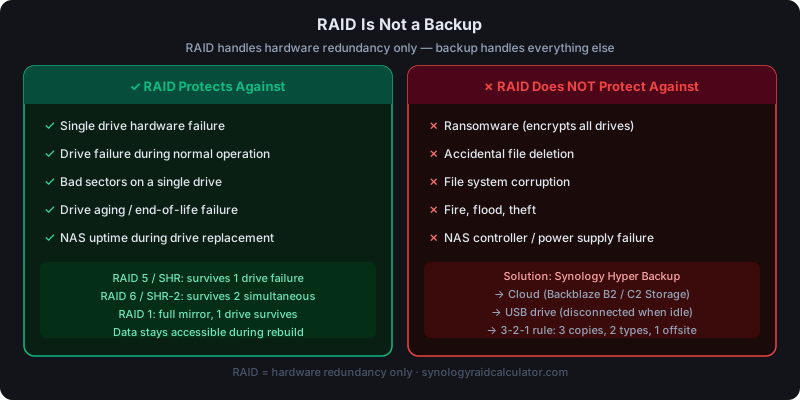
RAID protects against one thing: physical drive failure. It doesn't protect against ransomware, accidental deletion, fire, NAS controller failure, or corrupted files. You need a separate backup with at least one copy stored offsite to protect your data from the full range of threats.
This distinction sounds obvious once you've heard it, but it trips up a surprising number of NAS owners who assume their RAID 5 array is "backed up." It isn't. Here's exactly where RAID's protection ends and where backup begins.
What RAID Actually Protects Against
When a Synology NAS runs RAID 5 or SHR, it distributes parity data across drives. If one drive dies, the NAS reconstructs all missing data from the remaining drives. Your files stay accessible. You swap the failed drive, the array rebuilds, and you're back to full protection.
That's genuinely useful. Drive failures happen. A 4-bay NAS with RAID 5 tolerates one drive failure without losing data. RAID 6 and SHR-2 tolerate two. Run the numbers on your configuration to see exactly how much storage you'd have under each RAID type.
But the protection boundary is strict: RAID handles hardware redundancy. Nothing else.
What RAID Does NOT Protect Against
Ransomware: This is the scenario that matters most right now. When ransomware infects a Windows or Mac that has your NAS share mounted, it encrypts files directly through the network share. The NAS writes the encrypted versions to disk. Every drive in your RAID 5 array now faithfully holds encrypted garbage. The array is healthy. The data is gone.
Versioned snapshots (DSM Snapshot Replication) can help here. But only if snapshots were running before the attack and the ransomware didn't delete them. Not something to rely on as your only protection.
Accidental deletion: Delete a folder by mistake, or let a misbehaving script overwrite your files, and RAID replicates the deletion across every drive simultaneously. There's no undo.
File system corruption: Power outages during writes, DSM crashes, or storage pool errors can corrupt data. RAID doesn't distinguish between intact and corrupted data. If a file is corrupted on the volume, RAID 5 protects the corrupted version just as dutifully as it protected the original.
Physical disasters: Fire, flooding, theft. Your entire NAS. Controller, drives, chassis. Is in one location. A house fire destroys all of it regardless of RAID level.
NAS hardware failure: The controller board, power supply, or motherboard can fail. If your DS923+ dies and you need to read the drives in another system, RAID data recovery from a dead NAS is possible but complicated. It's not "pull the drives and plug them in anywhere."
Your own mistakes: Bulk-deleting the wrong directory, copying new files over old ones, running a backup script that goes the wrong direction: RAID propagates all of it.
The 3-2-1 Backup Rule
The 3-2-1 rule is the baseline for data protection:
- 3 copies of your data (original plus two backups)
- 2 different storage types (e.g., NAS plus external drive, or NAS plus cloud)
- 1 copy offsite (cloud storage or a drive at a different physical location)
Your NAS with RAID counts as the "original." You still need two more copies.
For home users, the practical implementation looks like this:
- Synology NAS (RAID 5 or SHR). Primary storage, protects against drive failure
- Local external USB drive. Fast local recovery for accidental deletions, connected during backup then disconnected
- Cloud backup (Backblaze B2, S3, or Synology C2). Offsite protection against fire, theft, ransomware
Synology Hyper Backup: The Right Tool
DSM's built-in Hyper Backup handles this well. It backs up to:
- Local external drives connected to the NAS
- Another Synology NAS at a different location
- Cloud services: Amazon S3, Backblaze B2, Google Drive, Dropbox, Synology C2 Storage
Hyper Backup uses incremental backups and deduplication. After the initial upload, daily incrementals for a 4TB dataset typically transfer 5–20 GB per night. Manageable even on a home internet connection.
Versioned backups matter: Hyper Backup keeps multiple restore points. If ransomware hits on Tuesday and you notice on Thursday, you restore from Monday's backup before the infection. Set at least 14 restore points. Ideally 30.
Why Disconnected Backups Beat Always-On Backups
A backup drive permanently attached to your NAS is at risk from the same ransomware that hits the NAS. Ransomware routinely scans for and encrypts all attached and mapped drives.
Better options:
- A USB drive that connects to the NAS only during a scheduled backup window (Hyper Backup can trigger this on supported models)
- Cloud backup with versioning enabled. Ransomware can't reach your cloud backup history even if it compromises the NAS
- Hyper Backup to a second NAS at a different location, with the destination configured as read-only
A Real-World Scenario
A home user has 4 years of family photos, home videos, and documents on a Synology DS923+ running RAID 5. Their network share is mapped as a drive on a Windows desktop. One day their kid opens a malicious email attachment. Ransomware spreads through the network and encrypts the NAS share.
Four hours later: every file on the NAS has a ".locked" extension. The RAID array is perfectly healthy. Six terabytes of family memories are encrypted garbage.
With Hyper Backup running nightly to Backblaze B2 with 30-day versioning, the recovery is painful but possible. Restore the previous night's backup, accept losing one day of new files. Without that backup, the options are paying a ransom with no guarantee of recovery, or accepting total data loss.
The Cost of Getting This Right
Backblaze B2 charges $0.006 per GB per month. Backing up 2TB costs roughly $12/month. That's the price of a streaming subscription for protection against losing everything.
Synology C2 Storage starts at $9.99/month for 200GB, scaling up from there. Google Drive, Dropbox, and Amazon S3 are all viable depending on your data volume and existing subscriptions.
A local external drive for fast recovery costs $80–150 for a 4–6TB drive. Buy it once.
Putting It Together
RAID is one layer of protection, not a complete strategy. It handles drive hardware failures reliably. Combine it with:
- Hyper Backup to cloud storage with 14–30 restore points
- A disconnected local backup for fast file recovery
- Synology's Snapshot Replication (DSM package) for near-real-time version history on the NAS itself
That's a real protection stack. Learn more about this tool and how storage calculations work, or check how much storage you need before planning your setup.
For planning your actual RAID configuration, our storage calculator shows usable capacity across all Synology RAID types. And if you're expanding an existing array, the NAS drive expansion guide covers each step in detail.