How to Expand Your Synology NAS Storage: Step-by-Step
Expand Synology NAS storage by adding drives to empty bays or replacing existing drives with larger ones. Step-by-step with rebuild time estimates.
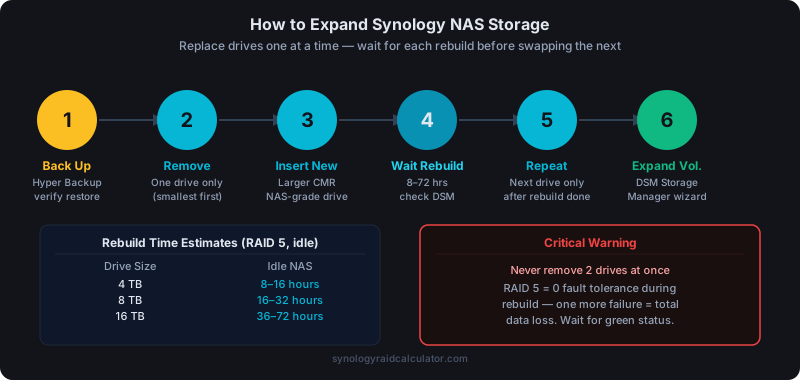
There are two main ways to expand a Synology NAS: add drives to empty bays (if you have them), or replace existing drives with larger ones one at a time. Both work with SHR and most RAID types. Always back up before touching any drive. A rebuild window with no verified backup is a gamble you don't want to take.
Running out of NAS space is a manageable problem if you plan for it. DSM handles online expansion reasonably well, but the process takes time and carries real risk during the rebuild window. Here's exactly how it works.
Know Your Expansion Path Before You Start
Your options depend on how many bays are empty:
If you have empty bays: Adding a new drive is the simplest path. Install the drive, let DSM detect it, add it to the storage pool, and the system expands. With SHR, this works even if the new drive is a different size from your existing drives: SHR allocates the extra capacity intelligently.
If all bays are full: You'll replace drives with larger ones, one at a time. Each replacement triggers a rebuild before the next drive can be swapped. For a 4-bay NAS with 4×8TB drives, expect 4–7 days total elapsed time.
If you need a lot more capacity: Some Synology models support expansion units. The DX517 adds 5 bays to the DS923+, DS1522+, and others. Check your model's spec sheet for compatibility.
Before starting, run the numbers to confirm what usable capacity you'll end up with. RAID overhead and mixed drive sizes affect the math in ways that aren't always obvious.
Step 1: Back Up Everything First
This is non-negotiable. Every expansion procedure involves a rebuild or data migration, and both carry risk. If a second drive fails during a rebuild, you could lose everything.
Use Synology Hyper Backup to create a verified backup before touching any drive. Don't just check that the backup job ran. Run a test restore of a few files to confirm the backup is actually usable.
If you don't have an off-NAS backup destination, set one up first. A USB external drive works for a one-time backup. Ideally, you have ongoing cloud backup (Backblaze B2, Amazon S3, or Synology C2 Storage) running continuously. The RAID is not a backup principle matters here: a rebuild failure without a backup is unrecoverable.
Step 2: Adding a Drive to an Empty Bay
This is the cleanest expansion scenario. Here's the procedure for SHR and RAID 5:
- Check DSM Storage Manager → confirm all drives are healthy (green status) before starting
- Power down the NAS, or hot-swap if your model supports it (check DSM Help for your unit)
- Insert the new drive into the empty bay
- Power on and log into DSM
- Go to Storage Manager → Storage Pool
- Select your storage pool and click Add Drive
- DSM shows the new drive as available. Select it and confirm
- DSM rebuilds parity across all drives. This takes time (see estimates below)
- After rebuild completes, go to Storage Manager → Volume → Manage → Expand Volume to allocate the new space
With SHR, if the new drive is larger than your existing drives, DSM uses the extra capacity beyond what parity requires. A 6TB drive added to a 4×4TB SHR array contributes more than just 4TB: SHR allocates the extra 2TB into the pool as a separate usable segment.
Estimated rebuild times when adding a drive (idle NAS):
| Existing Array Size | At ~100 MB/s (idle) | At ~50 MB/s (under load) |
|---|---|---|
| 4 TB total | 4–8 hours | 8–16 hours |
| 8 TB total | 8–16 hours | 16–32 hours |
| 16 TB total | 16–36 hours | 36–72 hours |
| 32 TB total | 36–72 hours | 72–144 hours |
Step 3: Replacing Drives With Larger Ones
When all bays are full, you replace drives one at a time and let the array rebuild between each replacement.
The replacement procedure for each drive:
- In DSM Storage Manager, note which slot the drive you're replacing occupies
- Shut down the NAS if it doesn't support hot-swap (most desktop units require shutdown)
- Remove the old drive and install the new, larger one in the same bay
- Power on and log into DSM
- DSM detects the change and marks the volume as degraded (this is expected)
- Go to Storage Manager → Storage Pool → Manage → Repair
- Select the new drive as the replacement and confirm
- Wait for the rebuild to complete fully before replacing the next drive
The critical rule: never remove a second drive until the first rebuild has finished. A RAID 5 array with one drive removed has zero fault tolerance. Removing a second drive destroys the array entirely. RAID 6 drops from two-failure tolerance to one. In either case, a second failure during rebuild means data loss.
Step 4: Expanding the Volume After Drive Replacement
Replacing all drives with larger ones doesn't automatically give you more usable space. After all drives are replaced and rebuilt, you need to explicitly expand the pool and volume:
- Go to Storage Manager → Storage Pool
- Click the pool, then Manage → Expand
- DSM expands the pool to use the newly available capacity
- Then go to Storage Manager → Volume → Manage → Expand Volume
- Assign the new free space to the volume
DSM guides you through this in a wizard. With SHR, the pool may expand automatically after each drive replacement rather than waiting for all drives to be swapped. You'll see available space added incrementally.
Step 5: Verify After Expansion
Once expansion is complete, run these checks:
- Storage Manager → Storage Pool → Check. Runs a data scrub to verify parity consistency
- S.M.A.R.T. extended test on every newly installed drive (Storage Manager → HDD/SSD → Health Info)
- Confirm your backup ran: Hyper Backup may have been paused or slowed during the rebuild
Don't skip the S.M.A.R.T. test on new drives. Drive failures in the first 30 days of use are disproportionately common. Finding a defective drive now, while the array is healthy, is far better than finding it in six months when it fails mid-rebuild.
How Long Does a Full Drive Swap Take?
Replacing all four drives in a DS923+ one at a time, waiting for each rebuild:
- 4× 4TB → 4× 8TB: expect 3–5 days total
- 4× 8TB → 4× 16TB: expect 7–12 days total
Keep the NAS as idle as possible during rebuilds. Pause Plex transcoding, suspend scheduled backup jobs, and avoid large file transfers. Every MB/s freed up goes toward the rebuild.
What About Mixing Drive Sizes?
With SHR, adding a 6TB drive to an array of 4TB drives works. SHR allocates the first 4TB of the new drive in the same pool as your existing drives, then carves the remaining 2TB into a separate usable segment. You gain more capacity than RAID 5 would allow.
RAID 5 treats every drive as the size of the smallest drive. A 6TB drive in a 4×4TB RAID 5 array is treated as 4TB. The extra 2TB is wasted. This is one of the main reasons SHR is the recommended default for home NAS setups.
See SHR vs RAID 5 on Synology for a detailed breakdown of how mixed-size handling differs between these two options.
Common Mistakes to Avoid
Buying SMR drives for RAID: SMR (Shingled Magnetic Recording) drives like the WD Red (non-Plus) are extremely slow during rebuild operations and can cause rebuild timeouts. Use CMR drives: WD Red Plus, Seagate IronWolf, or Toshiba N300.
Skipping the backup step: Drive failures during rebuilds are more common than expected. The stress of a full array read accelerates latent issues on aging drives. One bad sector on a second drive during rebuild can cause an unrecoverable read error.
Removing two drives at once: Even in a RAID 6 array, this leaves you with one drive of fault tolerance. In RAID 5, it's instant data loss. One drive at a time, always.
For planning what capacity you'll end up with, our RAID storage calculator lets you model different drive configurations before committing. Read the full RAID rebuild time breakdown for more on what to expect during the wait.