Synology RAID Rebuild Time: What to Expect After a Drive Failure
Synology RAID rebuild time ranges from 8 hours for a 4TB drive to 72+ hours for 16TB. Here's what drives it and how to protect your data during the wait.
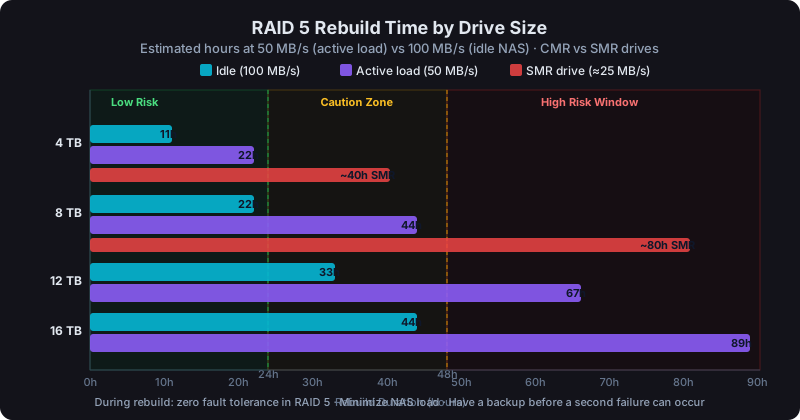
A RAID 5 rebuild on a Synology NAS takes roughly 11-22 hours per 4TB of drive capacity at typical idle speeds (50-100 MB/s). A 16TB drive rebuild can run 2-4 days. During that entire window, your array has zero fault tolerance. A second failure means data loss.
The drive failure notification arrives in your inbox. DSM shows a yellow warning icon. You've still got access to your files, but the NAS is telling you it's running on borrowed time. Understanding what happens next, and how long it takes, helps you make smart decisions under pressure.
What a RAID Rebuild Actually Does
When a drive in a RAID 5 or RAID 6 array fails, DSM marks the volume as "degraded." Your data is still fully accessible. The controller reconstructs missing data on the fly using parity. You're reading from a degraded array, which works, but there's no protection if another drive fails.
A rebuild does the following:
- You insert a replacement drive (same size or larger)
- DSM reads every single block from all surviving drives
- It mathematically reconstructs the missing data using parity
- It writes the reconstructed data to the new drive
- When done, the array returns to healthy status with full fault tolerance
This is not a quick copy operation. The controller has to read terabytes of data sequentially from multiple drives, calculate parity blocks, and write them to the new drive. All while potentially still serving your regular file requests.
Rebuild Time Estimates by Drive Size
Rebuild speed on a typical Synology NAS at idle is 50-100 MB/s. Under active workload (Plex streaming, surveillance recording, active file transfers), rebuild speed drops to 30-60 MB/s as the controller splits I/O resources.
| Drive Size | At 100 MB/s (idle) | At 50 MB/s (active load) |
|---|---|---|
| 2 TB | ~6 hours | ~11 hours |
| 4 TB | ~11 hours | ~22 hours |
| 6 TB | ~17 hours | ~33 hours |
| 8 TB | ~22 hours | ~44 hours |
| 12 TB | ~33 hours | ~67 hours |
| 16 TB | ~44 hours | ~89 hours |
These are estimates. Real-world speeds vary based on:
- How busy the NAS is during rebuild
- Drive health (degraded sectors slow everything down)
- Whether the array is RAID 5 (one parity set to recalculate) or RAID 6 (two)
- NAS CPU and memory (the DS923+'s AMD Ryzen R1600 handles parity math faster than lower-end Atom-based units)
For RAID 6, add roughly 15-25% to rebuild time for the first failure. A second-drive replacement in a degraded RAID 6 array takes longer still, because the controller needs to recalculate two parity streams simultaneously.
What to Do Immediately After a Drive Failure
Step 1: Don't panic and don't power off. A graceful degraded array is better than a cold start on a partially-failed array.
Step 2: Check DSM Storage Manager. Go to Storage Manager → HDD/SSD to confirm which drive failed. Look at the S.M.A.R.T. status on the other drives while you're there. If another drive is showing reallocated sectors or pending sectors, that's your warning.
Step 3: Order a replacement drive immediately. Don't wait. Every hour the array is degraded is an hour it could lose a second drive. If you have a spare on the shelf, even better.
Step 4: Check your backup. Run a quick Hyper Backup verification to confirm your last backup completed successfully. If it did, you have a safety net. If it didn't, you need to know that before the rebuild starts.
Step 5: Minimize load on the NAS during rebuild. Pause Plex transcoding jobs, suspend surveillance recording if possible, and avoid large file transfers. Every MB/s you free up goes toward the rebuild.
The Risk Window: Why Rebuild Time Matters
During a RAID 5 rebuild, your array has zero redundancy. If any of the remaining drives fail, you lose everything. This sounds terrifying but it's a manageable risk. It just requires understanding.
Drive failures aren't evenly distributed over time. They cluster around:
- Infant mortality (0-6 months): Early manufacturing defects
- End-of-life wear (5+ years): Physical degradation
If your drives are all the same age and model (a common home NAS setup), a failure in one drive slightly increases the statistical likelihood that another is approaching end-of-life too. Not dramatically, but the risk isn't zero.
For RAID 5 arrays with drives over 8TB, the rebuild window is long enough that RAID 6 starts to look very attractive. RAID 5 vs RAID 6 on Synology breaks down when the capacity trade-off is worth making.
What Speeds Up a Rebuild
Less active I/O during rebuild. The more the NAS can dedicate CPU and disk bandwidth to the rebuild, the faster it goes. Schedule heavy tasks (Hyper Backup, Plex library scans) after the rebuild completes.
Faster drives. 7200 RPM drives sustain higher sequential throughput than 5400 RPM drives. This matters for rebuild time. A 7200 RPM IronWolf or Toshiba N300 rebuilds measurably faster than a 5400 RPM WD Red Plus of the same capacity.
More RAM. DSM uses RAM for rebuild cache. The DS923+ ships with 4GB but supports up to 32GB ECC RAM. Adding RAM won't double your rebuild speed, but it reduces the chance of cache thrashing on large arrays.
RAID 10 architecture. RAID 10 rebuilds only need to copy from a mirror partner. No parity recalculation. A 8TB RAID 10 rebuild finishes in 1-3 hours versus 22+ hours for RAID 5. The cost is 50% capacity efficiency. Not worth it for general storage, but relevant for performance-critical workloads.
Monitoring Rebuild Progress in DSM
Storage Manager → Storage Pool shows rebuild progress as a percentage and estimated time remaining. DSM's estimate gets more accurate as the rebuild progresses. The initial estimate is often pessimistic.
You can also watch rebuild speed in real time: Storage Manager → HDD/SSD → select a drive → S.M.A.R.T. info, or enable email/push notifications in Control Panel → Notification so you get an alert when the rebuild completes.
Don't just set it and forget it. Check back every few hours during a long rebuild, especially if you're running large drives.
After the Rebuild Completes
Once DSM reports the array is healthy, run a few checks:
- Storage Pool → Check. Runs a data scrub to verify parity consistency on the rebuilt data
- S.M.A.R.T. extended test on the new drive. Verify it's healthy before trusting it with your data
- Confirm your backup ran. If Hyper Backup was paused or interrupted during rebuild, kick off a manual backup immediately
Don't wait to do these. The period immediately after a rebuild is exactly when you want confirmation that everything is consistent.
A Note on Rebuild and Backup
A RAID rebuild is not a substitute for backup, and a backup doesn't make RAID redundant. They solve different problems.
RAID keeps you online when a drive fails. Backup lets you recover when data is deleted, corrupted, or the entire NAS is destroyed. Running both isn't overkill. It's the minimum for anything you'd be upset to lose. The RAID is not a backup post covers this distinction in detail.
For planning your storage across drive sizes and RAID types, run the numbers with our calculator before committing to a configuration. Knowing your usable space and fault tolerance upfront makes the post-failure experience much less stressful.