Synology NAS Setup: First-Time Configuration Guide
Step-by-step Synology NAS setup guide covering drive installation, DSM configuration, RAID selection, and first backup. For first-time buyers.
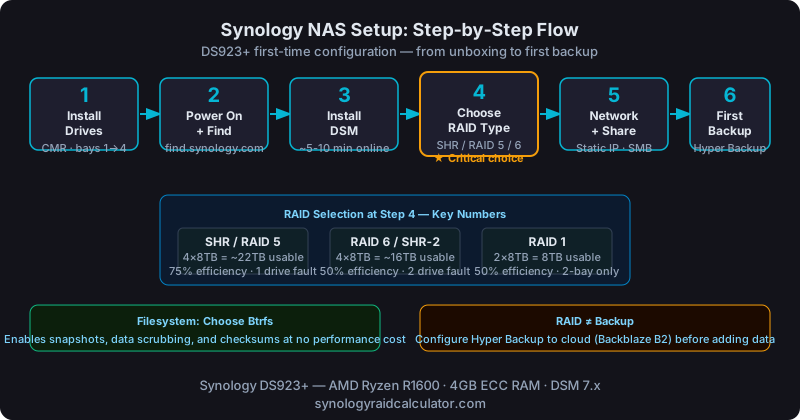
Synology NAS setup takes about 20-30 minutes from unboxing to a working network share. The most important decision you'll make during setup is which RAID type to choose in the DSM wizard. Get that wrong and you'll be reformatting later.
Setting up a Synology NAS for the first time is straightforward, but there are a few points where a wrong choice costs you time or storage. This walkthrough uses the DS923+ as the reference model, a 4-bay unit that's one of the most popular choices for home and small office users.
What You'll Need Before You Start
- Your Synology NAS unit
- 2-4 NAS-rated hard drives (CMR, Synology-compatible. See our drive selection guide)
- A network cable (don't rely on Wi-Fi during initial setup)
- A computer on the same network to run the setup wizard
- About 30 minutes
You don't need a monitor, keyboard, or USB drive. Synology's DSM operating system is installed over the network directly onto the NAS drives.
Step 1: Install the Drives
Power off and unplug the NAS before touching anything.
The DS923+ uses tool-free 3.5" trays. Pull the tray lever, slide the tray out, seat your drive, and snap it back in. The drive locks with a click. Repeat for each bay.
A few things to get right here:
- Fill bays consecutively starting from bay 1 (or the leftmost bay). RAID arrays build cleaner when bays are contiguous.
- Don't mix drive sizes if you want RAID 5. It wastes capacity on the larger drives. If you're using SHR, mixed sizes work fine, but still try to use the same size for simplicity on a first build.
- Tighten any screws on non-tool-free trays before closing the bay.
Once all drives are seated, connect the power adapter and ethernet cable, then power on.
Step 2: Find the NAS on Your Network
Wait about 90 seconds for the NAS to boot. Then open a browser on your computer and go to find.synology.com. This tool scans your local network and finds the NAS automatically.
Alternatively, use the Synology Assistant desktop app or go directly to diskstation:5000 in your browser (if your network resolves local hostnames).
You'll land on a page that says "Install DSM" with your NAS model displayed.
Step 3: Install DSM
Click Install Now. The wizard downloads the latest DSM version and installs it directly onto your drives (it uses a small reserved partition). This takes 5-10 minutes.
During installation, the NAS will reboot once. Don't panic when the page goes blank. Refresh after 60 seconds.
After install, you'll be prompted to:
- Create an admin account with a strong password
- Name your NAS (this becomes its local hostname)
- Set up a Synology account (optional, but needed for QuickConnect remote access)
Skip QuickConnect for now if you're not sure. You can enable it later in Control Panel.
Step 4: Choose Your RAID Type: The Most Important Decision
After initial login, the DSM wizard prompts you to create a Storage Pool and Volume. This is where you pick your RAID type, and it's the decision that's hardest to change later.
For a DS923+ with 4 identical drives, your practical options are:
SHR (Synology Hybrid RAID): Synology's default recommendation. It's RAID 5 under the hood when all drives are the same size, but it handles drive replacements with different-size drives more gracefully. Good default choice for home users who might upgrade drives over time.
RAID 5: One drive's worth of parity spread across all drives. With 4×8TB drives, you get ~21.8TB usable (75% efficiency). Requires all drives to be the same size to avoid capacity waste. Slightly more predictable than SHR for capacity planning, use the RAID storage calculator to confirm your expected usable space before committing.
RAID 6: Two drives of parity. With 4×8TB you get ~14.5TB usable (50% efficiency). Overkill for 4 bays. Really makes sense at 6+ drives where you want to survive two simultaneous failures.
RAID 1: Full mirror across 2 drives. Simple and fast to rebuild, but only 50% of total capacity is usable. Better suited for a 2-bay setup.
For a first-time 4-bay build: choose SHR or RAID 5. If all your drives are the same capacity, they're functionally identical in terms of usable storage. Run the numbers yourself with your actual drive count and size before clicking confirm.
The RAID type selection screen also asks about drive health checks (leave enabled) and Btrfs vs ext4 filesystem. Choose Btrfs. It supports snapshots, data scrubbing, and checksums at no performance cost on modern Synology hardware.
Step 5: Create a Shared Folder
Once your volume is created (which takes a minute to initialize), go to Control Panel → Shared Folder → Create.
Give it a name, "media", "backup", "documents", whatever matches your use case. Set permissions per user if you have multiple accounts. Enable recycle bin if you want a safety net for accidental deletions.
For SMB access (Windows file sharing), make sure SMB is enabled in Control Panel → File Services → SMB. On Mac, AFP is deprecated. Use SMB there too.
Map the network drive on your computer:
- Windows: \\DISKSTATIONsharename
- Mac: smb://diskstation/sharename
Step 6: Configure Network Settings
Default DHCP is fine for home use. If this is an always-on device (and it is), set a static IP or a DHCP reservation in your router so the NAS address never changes.
For DS923+, go to Control Panel → Network → Network Interface and either set a static IP or note the current IP to configure a reservation in your router settings.
Enable jumbo frames (MTU 9000) only if your switch and all connected devices support it. Otherwise leave at 1500.
Step 7: Set Up Your First Backup
A NAS is not a backup. If your drives fail (or you accidentally delete something), you need a copy somewhere else. This is non-negotiable. The RAID is not a backup reality catches a lot of first-time NAS users off guard.
Synology's built-in backup tools:
Hyper Backup: Backs up to an external USB drive, another Synology, rsync server, or cloud (Amazon S3, Backblaze B2, Google Drive). This is your primary backup tool.
Snapshot Replication: Creates point-in-time Btrfs snapshots. These aren't backups (they live on the same drives), but they let you recover from accidental file deletion in seconds.
Minimum viable backup strategy for home: Hyper Backup to a cloud destination (Backblaze B2 is ~$6/TB/month) + local snapshots for fast recovery.
Step 8: Install Packages
Synology's Package Center is where you add functionality. Common first installs:
- Plex Media Server. If this is a media server
- Surveillance Station. If you're adding IP cameras
- Moments or Photos: Synology's Google Photos alternative
- Active Backup for Business. If you're backing up PCs to the NAS
Don't install everything at once. Add packages as you need them. Each one uses RAM and CPU. The DS923+'s 4GB RAM (expandable to 32GB) handles several packages fine, but there are limits.
Common First-Time Setup Mistakes
Not setting a static IP or DHCP reservation. Your network drive mapping will break when the NAS gets a new IP after a router restart.
Skipping the admin account rename. "admin" as your username is a security risk. Create a named admin account and disable the default admin in Control Panel → User → admin → Edit → Disable.
Ignoring S.M.A.R.T. tests. Run an extended S.M.A.R.T. test on all drives immediately after setup. If a drive has hidden sector errors, better to find out now than during a RAID rebuild.
Not enabling 2FA. If you're ever exposing DSM to the internet (QuickConnect or otherwise), enable two-factor authentication in your account settings.
What's Next
Once the NAS is running, the next practical step is understanding how your storage will grow over time. The Synology NAS drive expansion guide covers how to add drives or replace existing ones without losing data.
And if you chose RAID 5 but aren't sure whether RAID 6 would have been smarter for your drive count, the breakdown in RAID 5 vs RAID 6 on Synology will help you think through whether a reconfiguration is worth it.